2.0
Introducing the MapsAnimation redesign. A new homepage, a clearer project workspace and a shared interface across Studio and the website.
Today we introduce MapsAnimation 2.0. The redesign brings the public website and workspace together with the same black and lime identity. We revisited navigation, editor panels and help pages so you can move between learning about the tool and working on your maps. This tour documents each area with a real screenshot.
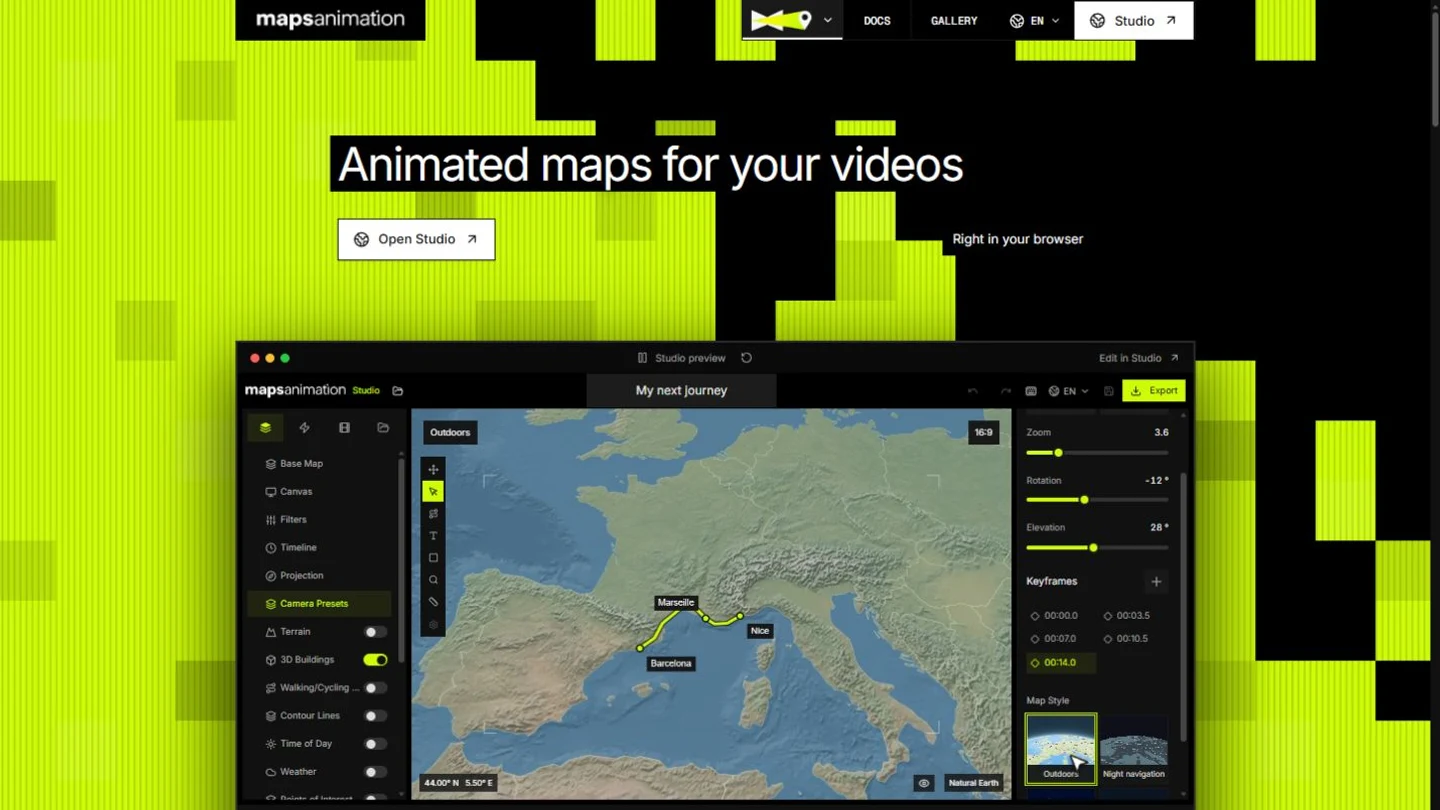
A new homepage
The homepage brings together the MapsAnimation identity, a Studio preview and the steps to get started. Black and lime frame the content while keeping the map visible. Map style examples and links to Studio let you explore the tool before opening a project.
Visit the homepageYour projects in one place
The project workspace brings creation, search and sorting together. Switch between grid and list views. Actions to open a project, change its privacy and delete it stay visible. Plan and usage information sits next to your workspace so you can check it before starting.
Open my projectsStudio keeps the map at the center
Studio places layers on the left, the map in the center and properties on the right. Tools stay next to the map. Panels, menus and controls share neutral backgrounds and lime selection states. On small screens, panels open as drawers to leave room for the composition.
Open StudioCamera, presets and timeline
Find presets in their own tab, organized into folders. The timeline brings playback, tracks and keyframes together. Choose a move, inspect its camera values and adjust the timing of your shot. The redesign keeps editing controls accessible and makes selection visible without changing map content.
Explore camera toolsExport with your frame in view
Export settings show the format, dimensions and an estimated file size. Resolution, video and audio settings sit in expandable sections. Check the preview and timeline range before exporting. Available formats and options depend on your plan and browser.
Review export settingsA gallery to explore
The gallery gives videos and their covers room. Search and categories help you find examples. Open a piece to inspect its framing, movement and map elements. The new presentation keeps these references separate from your private projects.
Visit the galleryDocumentation in the website
Documentation brings together the introduction and guides to editor tools. It shares navigation and styling with the website. Follow a topic and return to your work. Guides keep their content and links, with reading pages that adapt to the available width.
Read the documentationPlans and subscription
The pricing page compares plans in one view. Billing period, currency and included tools sit with each option. Subscription management remains available from your account. The redesign organizes this information so you can review plan conditions before choosing.
Compare plansHelp and answers
Support brings frequently asked questions and help resources together. Expand a question without leaving the page. Documentation, contact and learning content use the same visual language. Look up a specific question and then continue with your project.
Visit supportA visible roadmap
The roadmap organizes improvements by status. See what is planned, what is in progress and what has been released. Use it to follow product work. Suggestions retain their place alongside this view of upcoming improvements.
View the roadmapNews has its own home
Product announcements now live in News. Blog keeps its articles and categories. The Studio v1 and animation presets v1.01 announcements join this 2.0 entry in the new section. Previous links still reach the correct article and each announcement retains its original date.
View all news